Email management for virtual assistants is a crucial skill that significantly impacts productivity, client satisfaction, and overall professional success. In today’s digital age, emails are the primary mode of communication for most businesses, making effective email management a vital competency for virtual assistants. According to a study, professionals spend about 28% of their workweek managing emails, which translates to more than 11 hours per week. This staggering statistic highlights the importance of efficient email handling in a virtual work environment. In this comprehensive guide, we will explore essential tips and strategies for organizing your inbox, maintaining professional email etiquette, improving time management, and handling sensitive information securely.
Establishing Email Management Systems
Organizing Your Inbox Efficiently
The foundation of effective email management lies in organizing your inbox. A cluttered inbox can lead to missed messages, delayed responses, and increased stress. To combat this, start by creating a structured system of folders and labels to categorize emails by priority, client, or project. For example, you might create folders labeled “Urgent Tasks,” “Client A,” “Invoices,” and “Follow-Ups.” This structure allows you to quickly access relevant emails without sifting through hundreds of messages.
In addition to folders, labels can be used to add another layer of organization. For instance, you can label emails as “High Priority,” “Pending Response,” or “Completed” to keep track of your tasks and deadlines. By applying labels and moving emails to appropriate folders immediately after reading them, you can keep your inbox clean and manageable.
Tools for Email Sorting and Filtering
Sorting and filtering tools are essential for maintaining an organized inbox. Email platforms like Gmail and Outlook offer built-in filtering systems that allow you to automatically sort incoming emails based on specific criteria such as sender, subject, or keywords. For instance, you can create a filter that automatically moves all invoices to the “Invoices” folder or labels all emails from your boss as “High Priority.”
To further enhance your email management, consider using third-party tools like SaneBox, which prioritizes important emails and directs less critical messages to a separate folder. This reduces the noise in your inbox and helps you focus on what truly matters. Other tools like Clean Email can help you declutter your inbox by organizing old emails, unsubscribing from unwanted newsletters, and archiving messages in bulk.
Best Practices for Email Etiquette
Structuring Emails for Clarity and Impact
Professional email communication is key to maintaining a strong relationship with clients and colleagues. The structure of your emails can significantly impact how your message is received. Start with a clear and concise subject line that summarizes the content of the email. This helps the recipient understand the purpose of the email at a glance and prioritizes it accordingly.
Begin your email with a friendly yet professional greeting, such as “Dear [Name],” or “Hello [Name],”. Avoid overly casual greetings unless you have established a rapport with the recipient. The body of your email should be structured into short, concise paragraphs that convey your message clearly. Use bullet points or numbered lists to break down complex information, making it easier for the reader to digest.
Always close your emails with a courteous sign-off, such as “Best regards,” “Sincerely,” or “Thank you,” followed by your name and contact information. Including a professional email signature with your job title, company name, and any relevant contact details adds to your professionalism and makes it easy for recipients to reach you.
Avoiding Common Email Pitfalls
While email is a powerful communication tool, it’s easy to make mistakes that can undermine your professionalism. Common email pitfalls include using informal language, neglecting to proofread, and sending emails without reviewing the recipients. To avoid these mistakes, always double-check your emails for spelling and grammatical errors before hitting send. Use tools like Grammarly to catch errors that you might miss.
Another common pitfall is using all caps, which can be perceived as shouting. Similarly, be mindful of your tone, especially when addressing sensitive topics. It’s important to maintain a professional tone even in casual or friendly emails to avoid misunderstandings. If you’re unsure how your message might be received, consider reading it aloud or asking a colleague to review it.
Time Management and Email
Setting Specific Times for Email Management
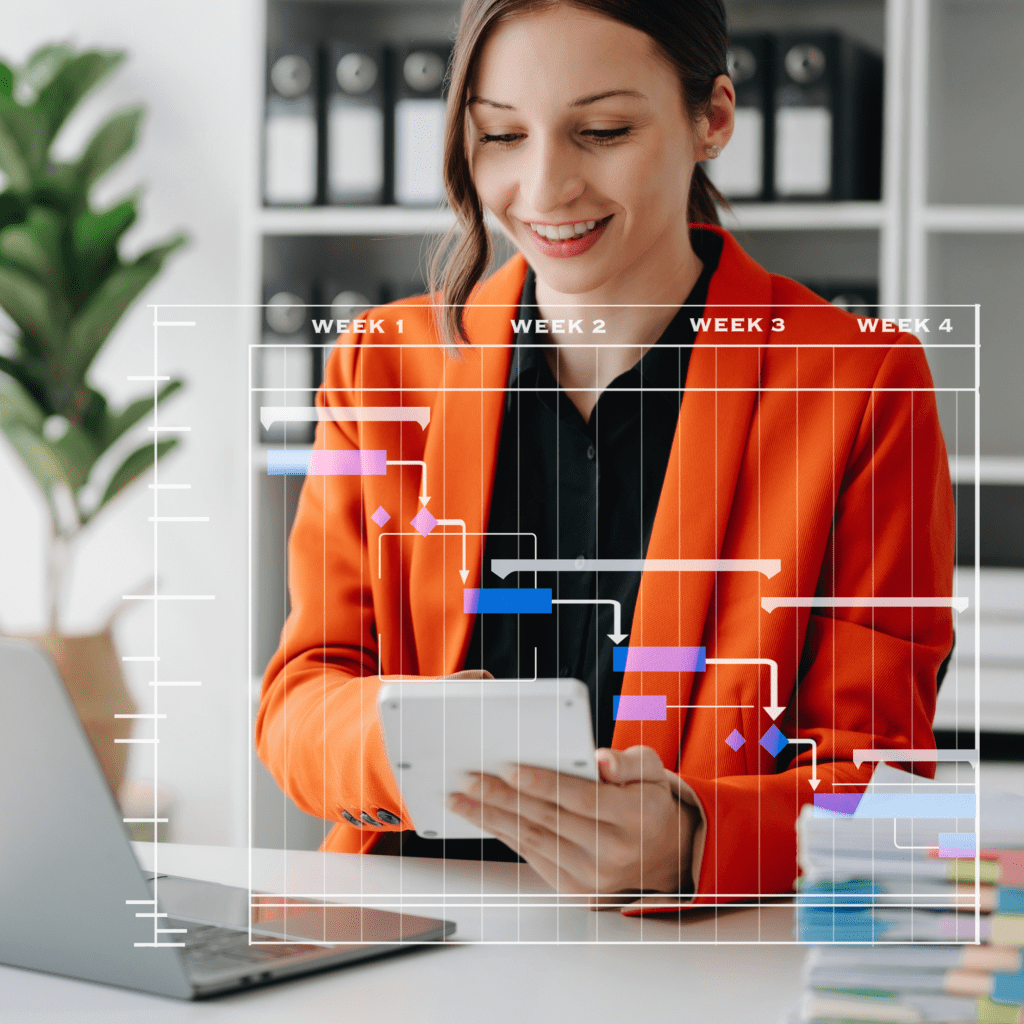
Emails can easily consume your workday if not managed properly. To prevent this, set specific times to check and manage your inbox, such as first thing in the morning, after lunch, and before wrapping up your workday. By limiting email checks to these designated times, you can focus on other tasks without constant interruptions from incoming messages.
During these email management sessions, prioritize your emails based on urgency and importance. Respond to high-priority messages immediately, and flag or label less urgent emails for follow-up during your next session. This approach ensures that you stay on top of your email responsibilities without letting them take over your day.
Using Templates for Efficiency
Templates are a valuable tool for improving efficiency in email communication. By creating templates for common responses, such as meeting confirmations, follow-ups, or status updates, you can save time and ensure consistency in your messaging. Most email platforms allow you to save and reuse templates, making it easy to insert a pre-written response with just a few clicks.
When creating templates, ensure that they are customizable to fit different situations. For example, a follow-up email template might include placeholders for the recipient’s name, the specific topic being followed up on, and any next steps. This allows you to personalize the template while still saving time.
Automation and Delegation
Utilizing Auto-Responders and Email Scheduling
Automation tools like auto-responders and email scheduling can significantly enhance your email management. Auto-responders are particularly useful when you’re out of the office or need to acknowledge receipt of emails. By setting up an auto-responder, you can inform senders that you’ve received their message and will respond within a certain timeframe. This helps manage expectations and reduces the need for follow-up emails.
Email scheduling is another powerful tool that allows you to draft emails at your convenience and schedule them to be sent at optimal times, such as during business hours. This feature is especially useful when working with clients in different time zones, ensuring that your emails are received when your recipients are most likely to read them.
Integrating CRM Tools for Better Email Management
Customer Relationship Management (CRM) tools like HubSpot and Salesforce can take your email management to the next level. These tools integrate your email correspondence with client profiles, allowing you to track interactions, manage leads, and schedule follow-ups seamlessly. By centralizing your communication, CRM tools help you stay organized and ensure that no important emails slip through the cracks.
In addition to tracking emails, CRM tools often offer features like automated follow-up reminders, email analytics, and integration with other business tools. This not only streamlines your email management but also enhances your overall productivity and client relationship management.
Handling Sensitive Information
Best Practices for Email Security and Confidentiality
As a virtual assistant, you may handle sensitive information that requires strict confidentiality. Protecting this information is paramount to maintaining trust with your clients. Start by using strong, unique passwords for your email accounts and enabling two-factor authentication (2FA) for an added layer of security. This ensures that only authorized users can access your email account.
When sending sensitive information via email, consider using encrypted email services or secure file-sharing platforms like ProtonMail or Dropbox. Encryption scrambles the content of your emails, making them unreadable to anyone who doesn’t have the decryption key. Additionally, avoid forwarding sensitive emails or sharing them with unauthorized individuals.
Guidelines for Handling Sensitive Emails
When dealing with sensitive topics, it’s important to maintain a high level of professionalism and clarity. Clearly state the purpose of the email in the subject line and ensure that all necessary information is included in the body. If the email contains confidential information, consider adding a disclaimer at the end, reminding recipients of the importance of confidentiality.
Before sending sensitive emails, double-check the recipient list to ensure that only the intended parties have access to the information. If you’re unsure whether email is the best medium for sharing certain information, consider using a more secure communication method, such as a phone call or encrypted messaging app.
Continuous Improvement
Reviewing and Updating Email Strategies Regularly
Email management is not a set-it-and-forget-it task. To maintain efficiency, regularly review and update your email strategies. Seek feedback from clients on your communication practices and make adjustments as needed. For example, if a client prefers more detailed updates, consider incorporating this feedback into your email templates or communication schedule.
Stay informed about new email management tools and best practices by subscribing to industry newsletters, attending webinars, or participating in relevant training sessions. By continuously improving your email management skills, you can stay ahead of the curve and provide top-notch service to your clients.
Staying Updated with Email Best Practices
The digital landscape is constantly evolving, and so are the best practices for email communication. To ensure that your email management remains effective, stay updated with the latest trends and tools. This might involve learning about new email automation features, exploring advanced CRM integrations, or adopting new strategies for managing inbox overload.
Engage with professional communities, such as virtual assistant forums or LinkedIn groups, to share experiences and learn from others in your field. By staying connected and informed, you can adapt to changes in the industry and continue to excel in your role as a virtual assistant.
Conclusion
Mastering email management and etiquette is essential for virtual assistants aiming to maintain professionalism, improve productivity, and deliver exceptional service to clients. By implementing the strategies outlined in this guide, you can ensure efficient email handling, effective communication, and secure management of sensitive information.
Recap of Key Points
- Establish a structured email management system with folders, labels, and filters to keep your inbox organized.
- Follow best practices for professional email communication, including clear structure, proper tone, and thorough proofreading.
- Manage your time effectively by setting specific times for email management and using templates to streamline responses.
- Utilize automation tools and CRM systems to enhance your email workflow and improve client relationship management.
- Handle sensitive information with care, ensuring email security and confidentiality at all times.
- Continuously review and improve your email strategies to stay effective and responsive to client needs.